

Índice
In this guide, we will introduce you to various ways how to restore your WordPress website in an emergency with a previously created WordPress backup.
Índice
Restore a WordPress Backup with BackWPup Pro – NEW
Since version 3.5, BackWPup PRO helps you to restore the website backups you made with our backup plugin. The restore feature is integrated in BackWPup PRO which means you can start the restore process in your WordPress backend directly. To do this, you simply need a backup which was created with BackWPup. In case your website is destroyed completely and you don’t have access to your backend anymore, you can use the restore standalone app which you get as PRO user.
In our BackWPup restore documentation you can read how the restore with BackWPup works in detail.
Manually restore a WordPress Backup
Besides that, there are some tools to restore your WordPress website from a backup.
A continuación te explicamos cómorestaurar la base de datos con phpMyAdmin y Adminer, y cómorestaurar los archivos con el programa FTP FileZilla.
Please note: For this tutorial we use a complete WordPress backup created with BackWPup, as all needed files are contained. This is the preferred method for beginners.
Advanced users can also use partial backups. For example, not backing up plugins or themes as they are available in the WordPress.org repositories or stored locally on your computer. You can save some space with this method. This means it can be that you don’t have all the files we are mentioning here.
Under BackWPup Pro → Add new job, tab General, we check all job tasks and choose Backup to folder as job destination. The WordPress backup will be stored on the server in your WordPress installation.

El contenido del archivo de copia de seguridad
Before you start, get the backup archive that you created with BackWPup. Unzip the
archive and take a look at the contents. You will see:
- the database of your WordPress as .sql file. The file may be zipped, depending on the settings of the backup job.
- the file SiteName.pluginlist.<Date>.txt – the list of all installed plugins. This is helpful if you don’t backup the plugin files, so you can easily add the plugins to your WordPress again and don’t forget any.
- the file SiteName.wordpress.<Date>.xml – the backup of the WordPress contents (blog posts, pages, products, etc.) in the XML format. Via the WordPress Importer you can restore the contents. In the admin area, this is located under Tools → Import.
- el archivo manifest.json: en el futuro, este archivo se utilizará para la restauración automática. Por ahora, puedes ignorar este archivo.
- the file backwpup_readme.txt – this file contains important information. You should read it before doing a restore.
- the files of your backed up WordPress installation – these need to be copied into the folder of your WordPress installation. See the part Restore the files with FileZilla. All other files mentioned above should not be copied to your server.
Restore the WordPress database from a backup
con phpMyAdmin
phpMyAdmin is a web application which you can use to administrate MySQL databases via a browser. It is offered by many web hosts. You don’t need any MySQL skills to work with it, as the tool has a WYSIWYG interface. If you want to restore a database, follow these steps:
- Inicia sesión en phpMyAdmin.
- In the sidebar you can see all current databases. Choose the one you wish to restore. You can find the name of the database of your WordPress in the wp-config.php file, which is located in the main directory of WordPress. Search for the line
define('DB_NAME', 'your_database_name_here'); - Si hay alguna tabla en la base de datos que también se encuentre en la copia de seguridad de la base de datos, se sobrescribirá.
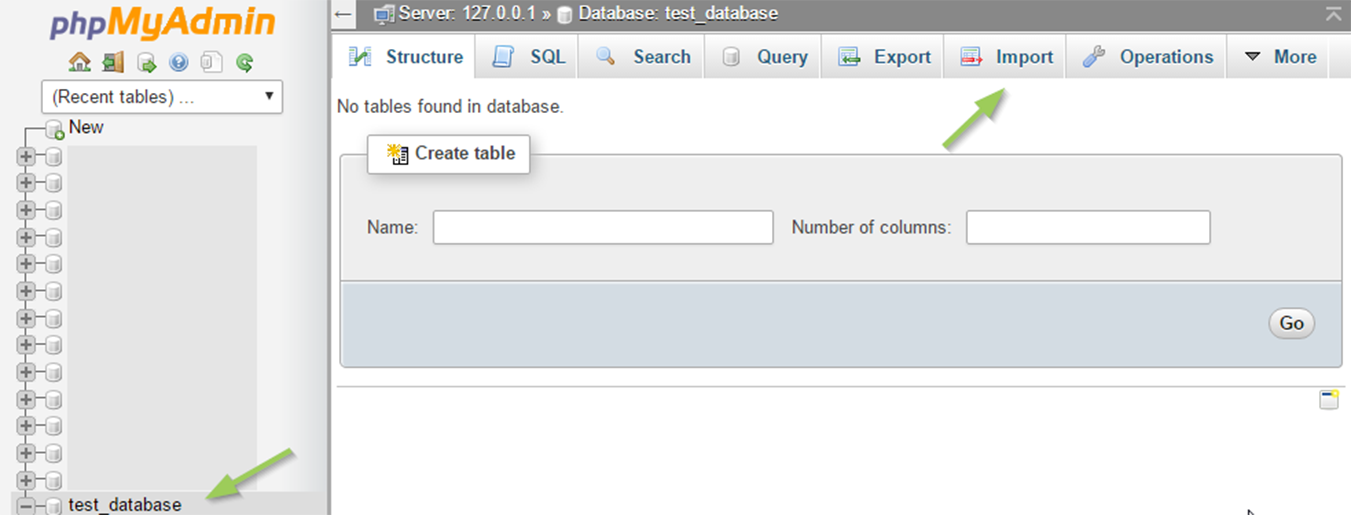
Inicia sesión en phpMyAdmin - Ir a Importar.
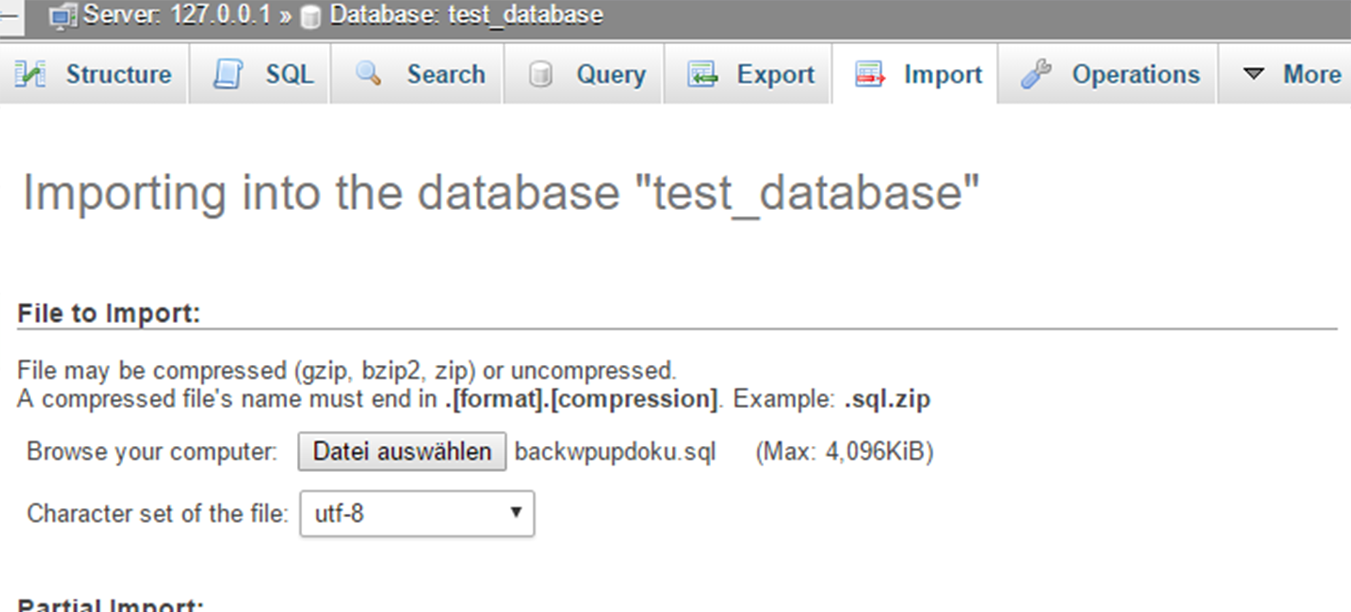
Ve a Importar. - Select the database .sql file of the BackWPup backup from your computer. It may be a zipped file if it is not a .sql file. phpMyAdmin should automatically set the encoding and database format settings (see screenshot above). The format should match the ending of the database file, it should be SQL. You can check the encoding by opening the unzipped database file in a text editor. Find the line
/*!40101 SET NAMES ... */; - Haz clic en el botón «Aceptar» y espera hasta que aparezca el mensaje indicando que la importación se ha realizado correctamente.
Algunos proveedores solo permiten importar bases de datos de un tamaño determinado. Si intentas importar un archivo más grande, aparecerá un mensaje de error. Ponte en contacto con tu proveedor de alojamiento o intenta importar la base de datos con el plugin Adminer, que se describe en la siguiente sección.
con Adminer
Adminer is similar to phpMyAdmin, it is a free tool you can download here. Upload it to the main folder of your WordPress installation. Adminer comes with just one php file, feel free to rename it to adminer.php for easier use.
- Abre el archivo de Adminer que has subido, por ejemplo yourdomain.com/adminer.php in your browser. You’ll see a form where you need to fill in the database credentials. You can find these in the wp-config.php file of your WordPress or you can get them from your host.
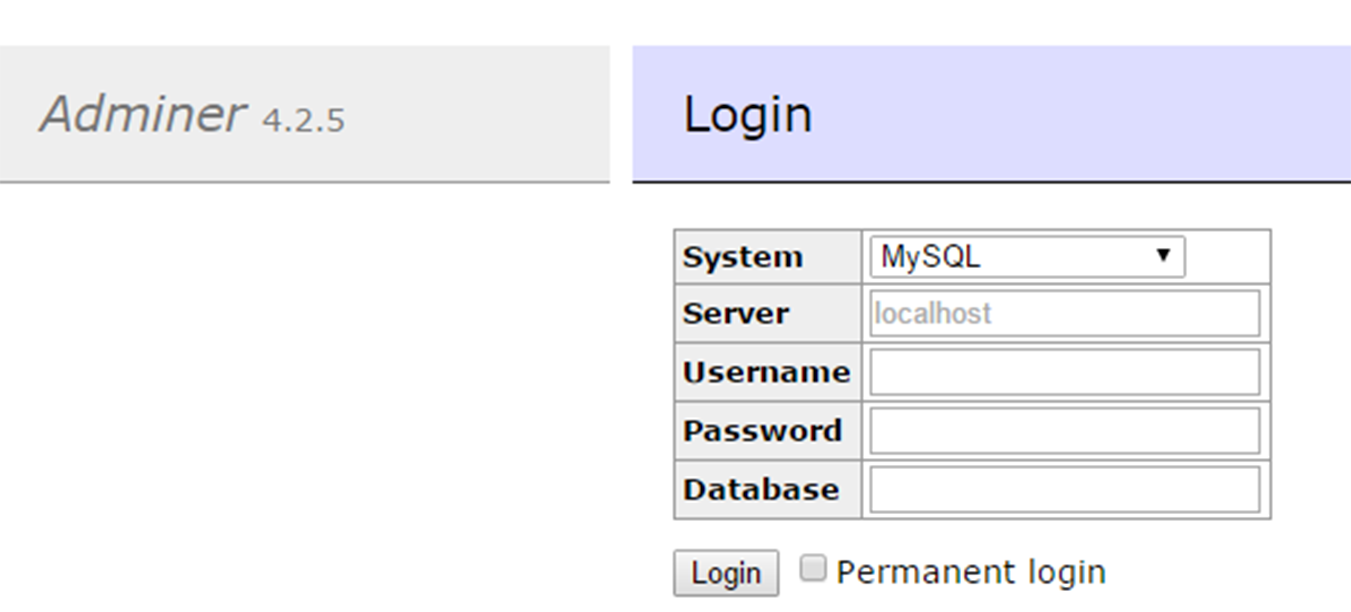
- Inicia sesión con tus credenciales. Ahora aparecerá una pantalla similar a la de phpMyAdmin. El funcionamiento también es similar al de phpMyAdmin.
- Si hay alguna tabla en la base de datos que también se encuentre en el archivo de copia de seguridad de la base de datos, la importación las sobrescribirá.
- Ir a Importar.
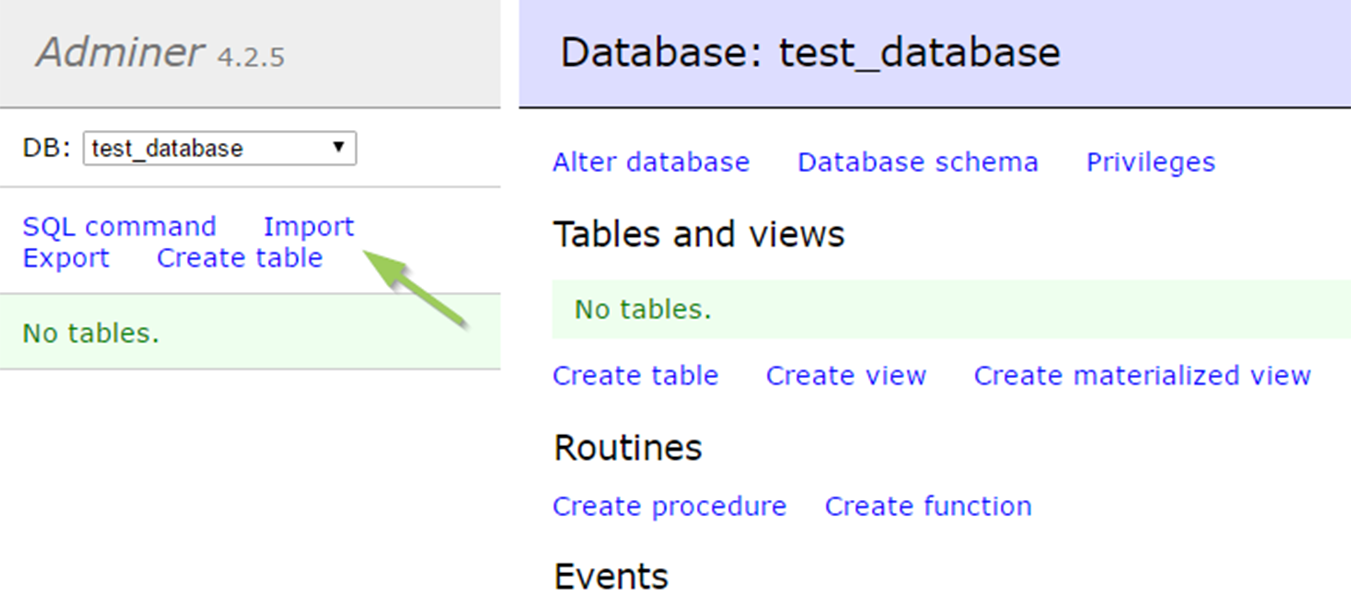
Ir a Importar Adminer - Select the database .sql file of the BackWPup backup from your computer. It may be a zipped file if it is not a .sql file. Once you selected the file, click on Ejecutar. Instead of uploading the file via Adminer, you can upload it via FTP in the same folder of the adminer.php file. Rename the database backup file to adminer.sql.gz. Con un clic en Ejecutar archivo Se inicia la importación de este archivo.
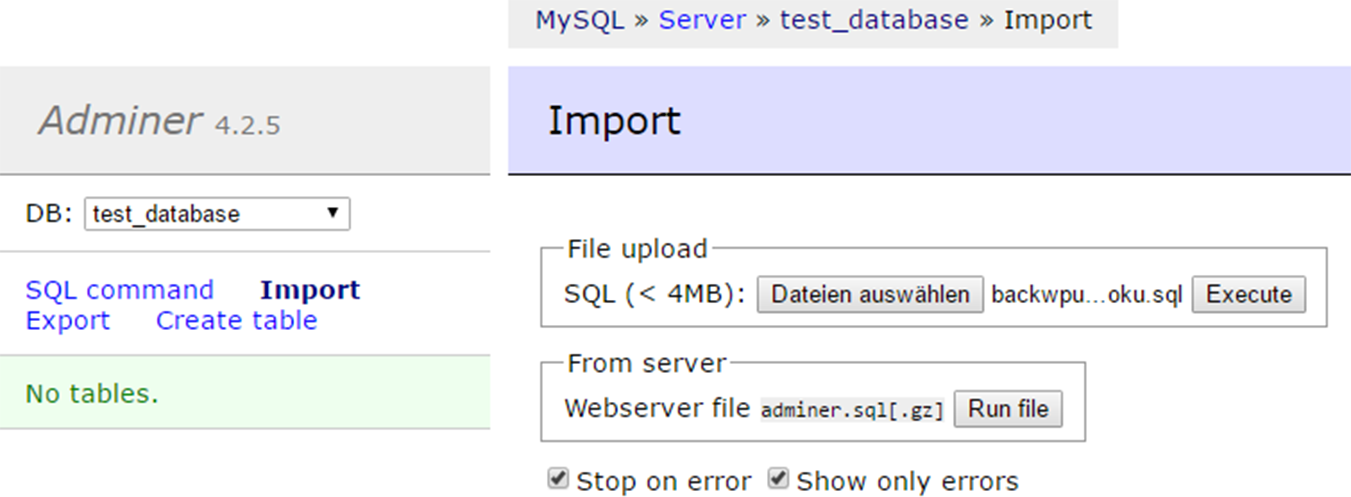
Ejecuta el archivo de importación - Espera hasta que aparezca el mensaje indicando que la importación se ha realizado correctamente.
If your host does not allow the use of Adminer, you can give the plugin Adminer for WordPress a try. You can install it via the WordPress admin area and access it via the menü Ari Adminer.
Restore the WordPress files with FileZilla from a backup
Please note: For restoring the WordPress files with FileZilla, it is not relevant where you have saved your backup to. It can be Amazon, Google Drive, on a FTP server or any other destination: get the backup archive from there and unzip it to get the WordPress files (see section Contents of the backup archive) before you continue with the tutorial.
Restoring the WordPress files is simply copying the files from your backup to the folder of your WordPress installation via a FTP client like FileZilla. Follow these steps:
- Instala el cliente FTP FileZilla en tu ordenador si aún no tienes este programa. Puedes descargar el programa aquí. No es necesario que descargues FileZilla Server, solo el cliente.
- Consigue las credenciales para acceder al FTP. Si no las conoces, ponte en contacto con tu proveedor de alojamiento.
- En FileZilla, ve a Archivo → Administrador de sitios, añade un nuevo sitio e introduce tus credenciales.
- Para establecer una conexión con tu servidor web, haz clic en «Conectar».
- Una vez establecida la conexión, verás los archivos de tu ordenador a la izquierda y los del servidor web a la derecha.
- On the left side, navigate to the folder of your BackWPup backup. On the right side, navigate to the folder of your WordPress installation.
- Selecciona todos los archivos de la parte izquierda que quieras subir.
Please note: Only upload the WordPress files, NOT: the database, the file SiteName.pluginlist.<Date>.txt, the file SiteName.wordpress.<Date>.xml, the file manifest.json and the file backwpup_readme.txt.
- Al hacer clic con el botón derecho del ratón sobre la selección, se abre un menú contextual desde el que puedes iniciar la subida. Puede tardar unos minutos, dependiendo del tamaño de los archivos. Puedes ver el progreso y los posibles errores en la parte inferior de la ventana de FileZilla.
Please note: Files, which are not backed up by BackWPup (depending on your settings), need to be uploaded additionally. Missing plugins and themes can be re-added via the WordPress backend afterwards. If you chose the option for excluding thumbnails in backups, you need to regenerate them again. For this, you can use the plugin Regenerate Thumbnails.